Overrides
Every setting an object, part or modifier can carry, in one panel. Tick the ones you want to override and leave the rest at the project value. Click the Overrides column in the Object list to open it for any of them.
Per-object settings used to be a hunt. Right-click the object, find "Add settings", pick a category from a submenu, tick boxes in a popup, and then edit the value in a small panel that only showed the keys you had added. You could not see what the project value was without going back to Print Settings, and a setting you had hidden from the sidebar had no per-object surface at all.
That panel has been rebuilt, and it works the same way for objects, parts and modifiers. Select any of them and click the icon in the Overrides column at the far right of the Object list. The panel opens under the list with every setting that item is allowed to override, grouped into the same categories and sections as Print Settings.
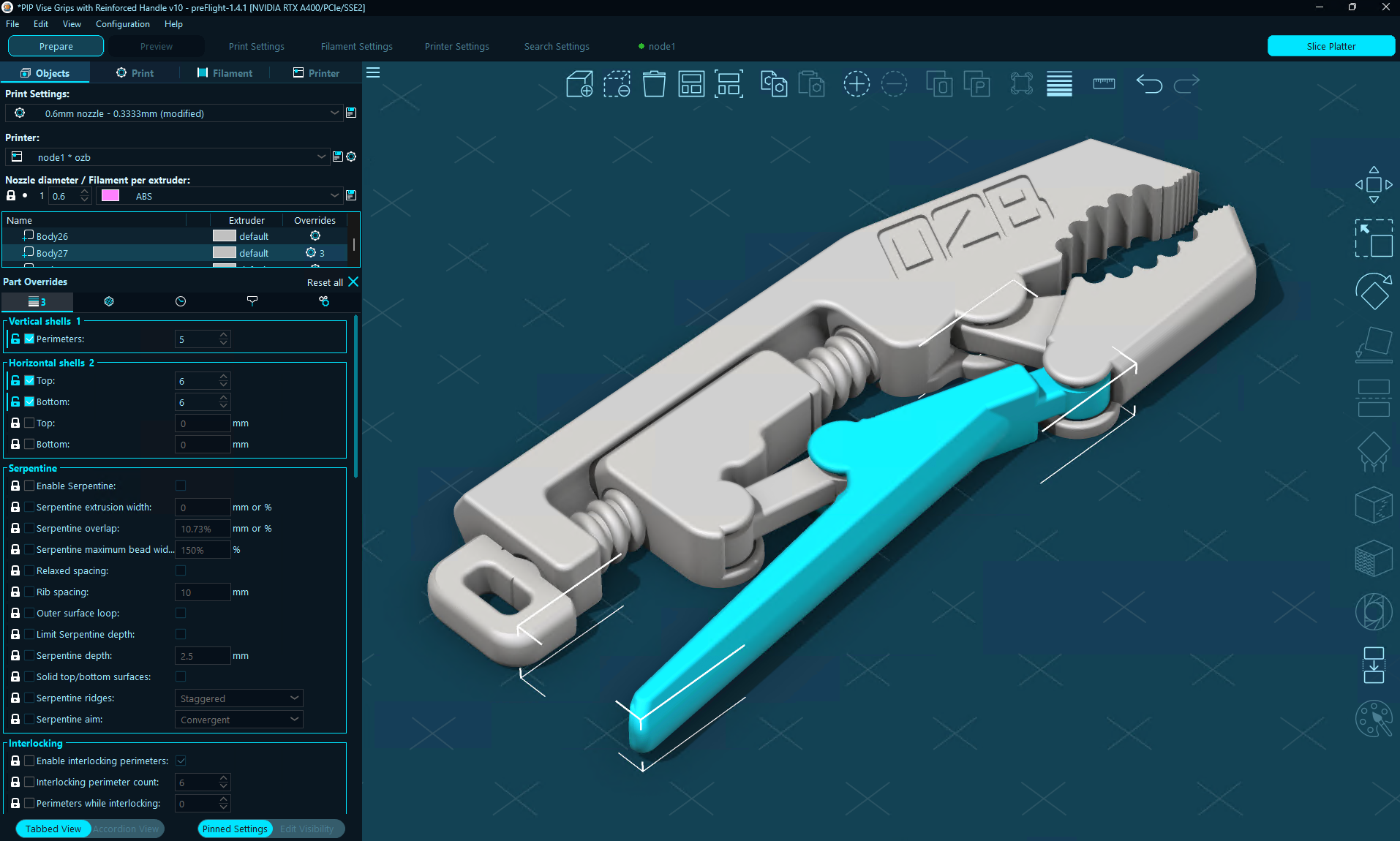
Part Overrides for one body of a multi-part object. Three settings are overridden; every other row shows the live project value.
One Checkbox Per Setting
Each row has a checkbox. Unchecked, the row shows the project's current value in a disabled control, and it follows along if you switch presets. Tick it and the control enables, seeded with that value, and whatever you type is now this object's override. Untick it and the override is gone. The lock icon on the left shows whether the value matches the project.
The icon in the Overrides column shows how many overrides the item carries, so you can scan a list of parts and see which ones differ from the project without opening anything. Reset all clears every override on the item after one confirmation.
Changes prompt the same way the main settings do. Enable Serpentine on an object and preFlight asks you to confirm, exactly as Print Settings does, then switches that item's perimeter generator to Athena. Set 100% infill with a pattern that cannot print solid and you get the same warning.
With the Sidebar open in the Preview, ticking a setting and changing it reslices that object in place. See Sidebar (Re)Slicing.
Objects, Parts, Modifiers
The panel works for a whole object, a single part of a multi-part object, or a modifier, and the rows are filtered to what that scope can carry. A part or modifier gets the region settings. A whole object gets those plus the object-level settings such as supports and brim.
An override set on the parent object flows down to every part, and a part can override it again. In a part's panel, an unchecked row shows the value the part actually inherits: the object's override when there is one, with the lock open and its tooltip saying so, or the project value otherwise. Each item's count badge counts only its own overrides.
Which Settings Can Be Overridden
A setting is project-wide when it belongs to the whole print: the bed, chamber and skirt, the wipe tower, travel moves and the layer time every object shares, the G-code file, the machine, or the material. A handful that belong to an object in principle, such as first layer height and temperature, spiral vase, extruder temperature, extrusion multiplier, pressure advance, shrinkage compensation and the fan speeds, stay project-wide until the engine work that frees them lands. Every new setting has to answer "project or object?" when it is created.
What Was Retired
The right-click "Add settings" flow, its category submenu and the per-category checklist popup are gone. The object info panel under the Object list was removed as well, which gives the list more room.